
Essential Gadgets for Home Office: 2026 Guide
Table of Contents
- What Essential Gadgets for Home Office Setups Actually Need to Do
- Ergonomic Desk Accessories That Reduce Strain and Boost Output
- Productivity Gadgets for Remote Work: Audio, Video, and Connectivity
- Lighting Solutions That Make Every Video Call Look Professional
- Must-Have Desk Gadgets Under $50 for Cable Management and Organization
- Setup Configurations for Specific Needs: Small Spaces, Neurodivergent Workspaces, and Eco-Friendly Desks
- How to Choose the Right Essential Gadgets for Your Home Office
- Frequently Asked Questions
Last Updated: August 31, 2026
What Essential Gadgets for Home Office Setups Actually Need to Do
Essential gadgets for home office setups solve real friction points: back pain after hour six, dropped audio on client calls, cables that multiply overnight, and monitors positioned at the wrong angle for your neck. The best home office gear earns its place by reducing strain, improving focus, and enabling professional-grade output from a spare bedroom.
A home office gadget is essential when it directly improves physical comfort or output quality. Generic USB hubs and decorative desk plants don't qualify. What does: anything that keeps your posture correct, your audio clean, your screen at eye level, and your cables from becoming a hazard.
Most guides treat every remote worker as identical. They're not. A software developer running dual monitors in a studio apartment has completely different needs than a sales manager doing back-to-back video calls in a dedicated home office. This guide breaks down both universal essentials and configuration-specific choices that match your situation.
Ergonomic Desk Accessories That Reduce Strain and Boost Output
Ergonomic desk accessories are the category most people under-invest in and most regret ignoring. Poor posture compounds over months, and by the time discomfort becomes pain, damage is already done. The right ergonomic setup addresses seating, display height, wrist position, and input device placement as a system.
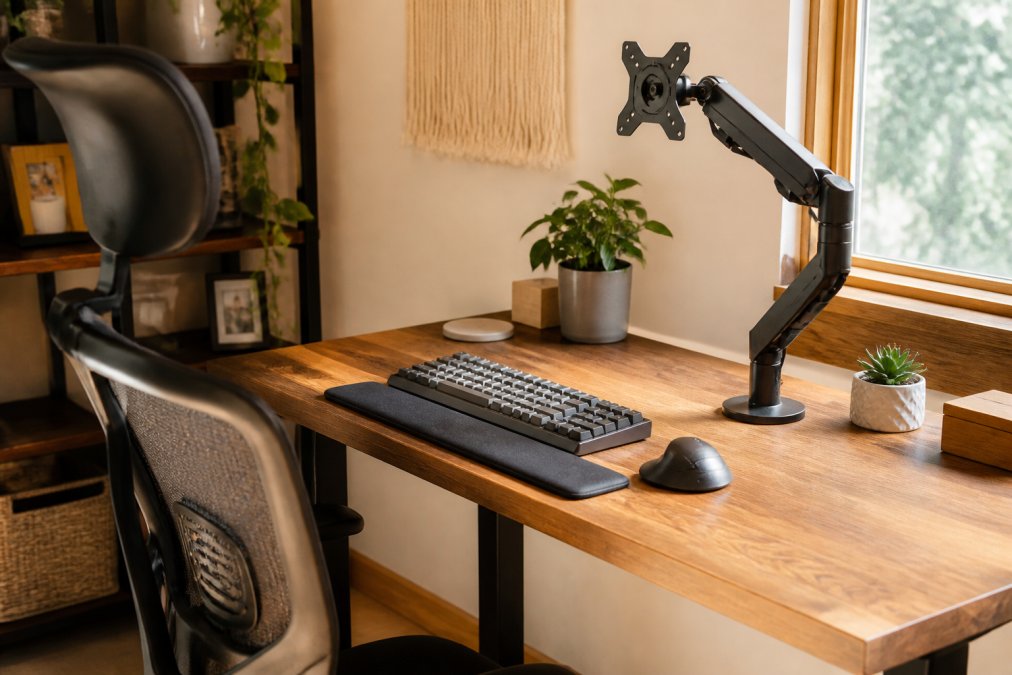
According to OSHA's computer workstation ergonomics guidelines, primary risk factors for musculoskeletal disorders include awkward postures, static loading, and contact stress, all directly addressed by the right desk accessories.
Lumbar Support and Seating Upgrades
The biggest mistake most remote workers make is spending heavily on a monitor or headset while sitting on a dining chair for eight hours. Lumbar support is non-negotiable. A dedicated ergonomic chair with adjustable lumbar support keeps the natural curve of the lower spine intact during long sessions.
If a full chair replacement isn't in the budget, a standalone lumbar cushion with memory foam and adjustable straps provides meaningful relief. Seat cushions with coccyx cutouts help anyone experiencing tailbone discomfort after extended sitting.
Adjustable height desks, or sit-stand desks, add flexibility by reducing static muscle load. Even a fixed-height desk paired with a monitor arm and footrest meaningfully improves posture without a full furniture overhaul.
Monitor Mounts, Wrist Support, and Input Devices
A monitor mount is one of the highest-return ergonomic desk accessories available. Positioning a display at eye level and arm's length eliminates the forward head posture that causes neck strain. Dual-monitor arms free up significant desk surface while improving comfort.
Wrist support matters more than most realize. A padded wrist rest for keyboard and mouse reduces contact stress during long typing sessions. Mechanical keyboards with low actuation force and tenkeyless layout keep the mouse closer to the body's centerline, reducing shoulder strain.
Ergonomic mice, particularly vertical designs, rotate the forearm to a more neutral position. Trackballs are another option for anyone experiencing repetitive strain from standard mouse movement.
Productivity Gadgets for Remote Work: Audio, Video, and Connectivity
Productivity gadgets fall into two tiers: ones that make you more effective, and ones that make you look and sound more professional to everyone else on the call. Both matter. A dropped connection or muffled audio in a client presentation has real professional consequences.
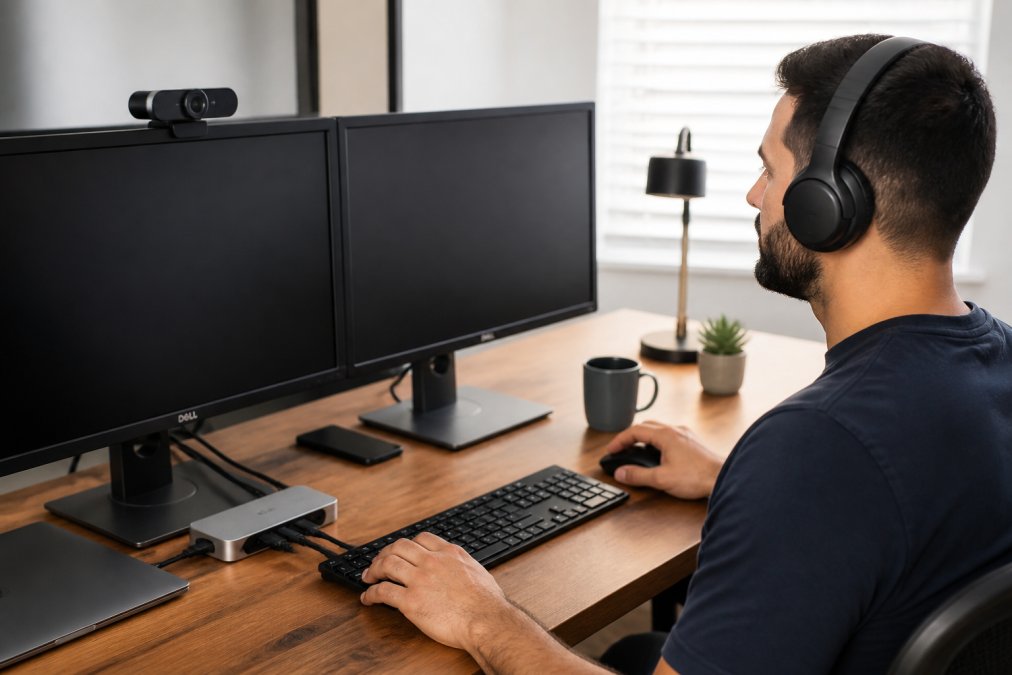
Noise-Canceling Headsets and Microphones for Video Conferencing
Noise-canceling headsets are the single most impactful audio upgrade for video conferencing. Active noise cancellation eliminates background noise before it reaches your ears, improving both your focus and call quality. Many noise-canceling headsets also apply outbound noise suppression so colleagues don't hear your HVAC system.
For dedicated microphones, a USB condenser mic on a short desk arm delivers significantly better audio than any built-in laptop microphone. Cardioid polar patterns capture sound from directly in front while rejecting room noise from the sides and rear.
The choice between a headset and separate microphone-plus-speakers setup depends on workflow. Headsets are more portable; separate components offer better audio quality and less fatigue during all-day wear.
Docking Stations, Connectivity Hubs, and Wireless Peripherals
A docking station transforms a laptop into a full desktop workstation. One cable delivers power, video output to one or two monitors, USB-A and USB-C connections, and wired ethernet. The workflow efficiency gain from single-cable connection and disconnection is significant for anyone moving between home and office.
Thunderbolt 4 docks offer the highest bandwidth and broadest device synchronization. USB-C docks are more universal but may have limitations on video output resolution or power delivery. Verify compatibility with your specific laptop model before purchasing.
Wireless peripherals have reached a point where input latency is negligible for office applications. Modern 2.4 GHz wireless connections are effectively indistinguishable from wired. Bluetooth adds convenience of pairing across multiple devices without a dongle, though it introduces slightly more latency.
| Gadget Category | Key Spec to Check | Best For |
|---|---|---|
| Docking Station | Thunderbolt 4 / USB-C compatibility | Multi-monitor laptop users |
| Noise-Canceling Headset | Active noise cancellation + outbound suppression | Open-plan or noisy homes |
| Ergonomic Chair | Adjustable lumbar + armrests | All-day desk workers |
| Monitor Arm | Weight capacity + VESA compatibility | Neck and posture relief |
| USB Condenser Mic | Cardioid polar pattern | Video conferencing quality |
| Wireless Keyboard/Mouse | 2.4 GHz + multi-device pairing | Cable-free desk setups |
| LED Desk Lamp | Color temperature control + dimming | Video call lighting |
Lighting Solutions That Make Every Video Call Look Professional
Lighting is the most underrated element of a home office setup. A poorly lit face on a video call communicates distraction or unprofessionalism regardless of what's being said.
Ambient lighting that eliminates harsh shadows provides neutral, flattering light. Bias lighting behind a monitor reduces eye strain by decreasing contrast between the bright screen and dark wall. Task lighting positioned to the side or slightly above eye level provides even facial illumination without glare.
For video conferencing, a ring light or panel light with adjustable color temperature is the most direct upgrade. Warmer light suits casual calls while cooler, daylight-balanced temperature looks more professional in formal settings. Blue light reduction features are increasingly standard and worth prioritizing for extended screen time.
According to the American Optometric Association's guidance on digital eye strain, proper ambient lighting that matches screen brightness significantly reduces computer vision syndrome symptoms. Positioning a light source at a 45-degree angle to the face produces the most flattering and least fatiguing result.
Must-Have Desk Gadgets Under $50 for Cable Management and Organization
Cable management is where desk aesthetics and workflow efficiency intersect. A desk covered in tangled cables creates friction every time you need to reach for a peripheral, move equipment, or clean the surface.
The most effective under-$50 desk gadgets include:
- Cable clips and adhesive raceways that route cables along desk edges and legs
- Velcro cable ties for bundling cables behind monitors or underneath the desk
- Under-desk cable trays that mount to the desk frame and hold power strips out of sight
- Desk grommets for routing cables through the surface cleanly
- Charging stations with integrated cable management that consolidate multiple device cables
- Monitor stands with built-in storage that elevate the display while providing a shelf for drives or charging pads
Desktop organization extends beyond cables. A small desktop shelf or monitor riser with a drawer keeps frequently accessed items within reach without cluttering the work surface. Magnetic accessories attach to metal desk frames without adhesive and reconfigure easily.
According to research published by the National Safety Council on workplace organization, organized workspaces reduce time spent searching for tools, compounding into meaningful productivity gains over the course of a workweek.
Setup Configurations for Specific Needs: Small Spaces, Neurodivergent Workspaces, and Eco-Friendly Desks
Most home office guides assume a dedicated room with a full-sized desk. The right essential gadgets change substantially based on physical constraints, cognitive needs, and values around sustainability.
Small-Space and Apartment-Specific Desk Setups
Small-space setups demand different prioritization logic. Every gadget needs to justify its footprint. Go vertical, go wireless, and consolidate where possible.
A wall-mounted monitor arm eliminates the monitor's footprint entirely. A tenkeyless keyboard keeps the mouse closer to center. A laptop stand with vertical orientation stores the laptop off the desk surface when using an external display. A single USB-C docking station replaces a tangle of individual adapters.
Fold-down desks and corner desks make efficient use of wall space. For truly minimal setups, a lap desk with wrist support and wireless keyboard-trackpad combination can function as a complete portable workstation that packs away entirely.
Spatial awareness, knowing exactly where everything lives and being able to set up and tear down quickly, defines a good small-space setup. Every cable should have a dedicated clip.
Neurodivergent-Friendly Workspace Design
Neurodivergent-friendly workspace design directly affects cognitive performance for workers with ADHD, autism spectrum conditions, sensory processing differences, or anxiety.
Key considerations:
- Sensory control: Noise-canceling headsets are valuable for sensory-sensitive workers, providing control over auditory input and supporting focus.
- Visual calm: Minimizing visual clutter on and around the desk reduces distraction. Cable management and closed storage matter more here.
- Haptic feedback: Mechanical keyboards with tactile switches provide grounding feedback that some users find easier to type on accurately.
- Lighting control: Full-spectrum LED lighting with dimming allows workers to adjust intensity based on sensory tolerance. Flickering or harsh fluorescent lighting triggers sensory overload.
- Routine anchors: Physical desk organization systems and labeled trays support working memory by reducing cognitive load of locating tools.
The goal is a workspace that reduces uncontrolled sensory input while providing structure and predictability that supports sustained focus.
Sustainable and Eco-Friendly Office Tech Choices
Eco-friendly home office tech choices don't require sacrificing performance.
- Energy Star-certified peripherals consume less power during active use and enter low-power states more aggressively
- Recycled or reclaimed materials appear in desk accessories, monitor stands, and cable management products
- Rechargeable wireless peripherals eliminate disposable battery waste over the product's lifetime
- Durable, repairable hardware reduces replacement frequency; a longer-lived product has lower total environmental footprint
- LED lighting uses a fraction of the energy of incandescent alternatives and lasts significantly longer
The most sustainable choice is often the one that lasts longest. Prioritizing build quality and repairability over price minimizes total waste over time.
How to Choose the Right Essential Gadgets for Your Home Office
Choosing the right essential gadgets starts with an honest audit of your current friction points. Not what looks good in a desk tour video, but what actually slows you down or causes discomfort during a real workday.
A practical decision framework:
- Identify your top three pain points. Neck pain, poor call audio, cable chaos, and slow connectivity are most common. Address the highest-impact problem first.
- Check hardware compatibility before purchasing. A docking station that doesn't support your laptop's chipset creates more friction than it solves.
- Prioritize ergonomics over aesthetics. A visually minimal desk that causes shoulder pain after four hours is a bad setup regardless of how it photographs.
- Buy for your actual workflow, not an idealized one. If you're rarely on video calls, a premium webcam is lower priority than a better chair.
- Consider your space constraints honestly. A large monitor arm is counterproductive in a 30-inch-wide workspace.
The American College of Occupational and Environmental Medicine's guidance on ergonomic workstation design recommends addressing seating and display positioning before peripheral upgrades, a principle that holds regardless of budget level.
Tech Sphere and More has tech products and pet products. We are always adding new products. Check the current catalog for availability and pricing on specific products.
Frequently Asked Questions
Q: What are the top must-have gadgets for a home office?
A: The most impactful home office gadgets cover four categories: ergonomics (lumbar chair, monitor arm, wrist rest), audio and video (noise-canceling headset, quality webcam), connectivity (USB-C docking station, reliable router), and lighting (adjustable LED task light or ring light). Start with whichever category causes the most daily friction. For most remote workers, audio quality on video calls and ergonomic seating deliver the fastest, most noticeable improvements to comfort and workflow efficiency.
Q: How can I improve my home office setup on a budget?
A: Several high-impact upgrades cost under $50. A cable management kit, a monitor riser, a blue light reduction screen filter, and a USB hub are all affordable starting points. If you can spend a little more, a quality wrist rest and a task light with adjustable color temperature make a real difference. Prioritize the items that address your biggest daily pain point first, whether that is posture, clutter, or poor audio on calls, rather than buying everything at once.
Q: What are the most important ergonomic accessories for desk workers?
A: Lumbar support is the single most cited ergonomic upgrade among desk workers. Beyond the chair, a monitor mount that positions your screen at eye level prevents neck strain, while a separate keyboard and mouse allow your arms to rest at a natural angle. A wrist support pad reduces pressure during long typing sessions. For anyone spending six or more hours at a desk daily, an adjustable-height desk or a sit-stand converter is worth serious consideration for long-term comfort.
Q: Which tech upgrades actually improve remote work productivity?
A: The upgrades with the clearest productivity payoff are a docking station (one cable connects all peripherals), a second monitor (reduces window-switching time), noise-canceling headphones (cuts distraction during focused work), and a dedicated webcam with decent low-light performance (builds credibility on video calls). Wireless peripherals with low input latency also reduce desk clutter without sacrificing responsiveness. Each of these addresses a specific workflow bottleneck rather than adding tech for its own sake.
Q: What are the best desk gadgets for cable management and organization?
A: Cable raceways, adhesive cable clips, and under-desk cable trays are the most practical starting points. A power strip with individual switches mounted under the desk keeps outlets accessible without cord chaos on the surface. Velcro cable ties are reusable and far easier to adjust than zip ties. For a cleaner look, a wireless charger eliminates one more cable entirely. Good cable management also improves spatial awareness at the desk, making it easier to focus without visual clutter competing for attention.
Q: Are there specific home office gadgets suited to small apartments?
A: Yes. Wall-mounted monitor arms free up desk surface entirely. Compact mechanical keyboards (60% or 75% layouts) take up significantly less space than full-size models. A laptop stand with a separate keyboard and mouse turns a small surface into a functional workstation. Foldable or wall-mounted desks work well when the workspace needs to disappear after hours. Wireless peripherals also reduce cord tangles in tight spaces, and a single USB-C hub can replace a full docking station when desk real estate is limited.
Q: What should neurodivergent workers look for in home office gadgets?
A: Sensory comfort matters most. Look for keyboards with tactile but quiet switches to reduce auditory overload, and headphones with adjustable noise-cancellation levels rather than a single on/off mode. Bias lighting behind the monitor reduces eye strain without harsh overhead light. Desk organizers with clear visual categories help reduce cognitive load. Fidget tools designed for the desk, such as quiet tactile pads, can support focus. Reducing visual clutter through good cable management and minimal desk accessories also helps maintain attention.
Remote work has made the home office permanent for many professionals, but most setups still fall short of what's needed for sustained, high-quality output. Tech Sphere and More offers a growing range of home office tech products, from ergonomic desk accessories to connectivity hardware, selected for real-world performance rather than spec-sheet appeal. Browse the current catalog at Tech Sphere and More to find the right upgrades for your specific setup and workflow.
This article was written using GrandRanker